Not from the Instagram app: a chat has no button to attach a PDF. You can paste a link to the file, or use a tool on Meta's official API, such as BlipDM, which sends the PDF itself in the DM when someone comments your keyword.
The usual story goes like this. You made a free ebook. You posted "Comment EBOOK and I'll send it". Then you opened a DM, looked for a way to attach the file, and found photos and videos but nowhere to add a PDF.
So you uploaded it to Google Drive and pasted the link into 80 chats. Two days later someone writes "it says I need permission". Someone else never taps the link at all.
This article explains what Instagram actually lets you send in a DM, the manual ways people share PDFs, why links let you down, and how to send the file itself automatically when someone comments.
Key takeaways
The Instagram app doesn't have a button to attach a PDF to a chat. Instagram's Help Centre lists text, photos, videos, posts and profiles as the things you can send. People report mixed results dragging a PDF into a chat on desktop, so don't build a launch around it.
The usual workaround is a link to the file on Google Drive, Dropbox or your website. It works, but links break when sharing settings change, show login or "request access" screens, and add one more tap where people drop off.
Tools on Meta's official Instagram API can send a real file in the DM. With BlipDM's Pro and Elite plans you upload the PDF once, and every person who comments your keyword gets the file in the chat. On Elite you can ask for a follow or an email first.
What Instagram lets you send in a DM
According to Instagram's Help Centre article on the types of messages you can send in chats, a message can contain text, photos and videos from your camera or library, posts you see in feed, disappearing photos and videos, and profiles. Documents aren't on that list.
In practice that means:
- On the phone app: there's no file attachment option in Instagram Direct. You can send a photo of a page, but not the PDF itself.
- On desktop and the web: some guides say you can drag a PDF into an open chat; others say nothing happens. Behaviour seems to depend on the account and the rollout. If it works for you, it's fine for one-off sends, but it doesn't scale.
- Through Meta's API: business tools connected to the official Instagram API can send file attachments, including PDFs, in a conversation. This is how automation tools deliver a real file.
The difference isn't your phone or your account type. It's whether a person is sending the message by hand or a tool is sending it through Meta's API.
The manual ways people send PDFs
1. A cloud link (Google Drive, Dropbox, OneDrive)
Upload the PDF, set sharing to "Anyone with the link" and paste the link into the chat. This is the most common method because it's free and quick.
Check the sharing setting before you send. Google Drive's default for many accounts is "Restricted", which means everyone who taps sees a "request access" screen and you get a flood of emails.
2. A link to your own website
Upload the PDF to your site, a Notion page or a course platform and send that link. This looks more professional than a Drive link and you control it. It's also the best option if you want to track visits with UTM tags in your own analytics.
3. Send the PDF as images
For a short one or two-page checklist, export each page as a JPG and send them as photos. It opens instantly, but text is hard to read on a phone and nobody can save it as a proper document.
4. Desktop drag-and-drop
If dropping a PDF into a chat works on your desktop, you can use it for single sends to a client. Test it with a friend first and check it opens on their phone.
Why links let you down
Links are fine for one person. They become a problem when a post gets a few hundred comments.
- Permissions. Someone changes the folder's sharing setting, or you move the file, and every link you've ever sent breaks.
- Expiry. Some file-sharing services expire links after a set time or on free plans. People who come back next month find nothing.
- Login walls. Drive and Dropbox sometimes push people to sign in or open an app. On a phone, that's where many give up.
- People don't tap. A bare URL in a DM looks like spam. Even with a link button, every extra tap and page load loses some readers.
- It leaves Instagram. The browser opens, the file downloads somewhere, and the person forgets which account it came from.
None of this means links are wrong. A link is still the right choice for paid products behind checkout and for files too big to send. For a free lead magnet, sending the file itself is usually better. Our article on how to send links in Instagram DMs covers making links work when you do need them.
Sending the PDF itself with BlipDM
On the Pro and Elite plans, BlipDM can send a PDF or ebook directly in the DM. You upload the file in BlipDM, so there's no Drive folder to manage and no sharing setting to break. When someone comments your keyword, the file lands in the chat and they open it without leaving Instagram.
It works with every BlipDM trigger:
- Comments on posts and reels, with a keyword or any comment.
- Story replies, such as "Reply EBOOK".
- DM keywords, when someone messages you a word like "guide".
- Next Post automation, so the PDF goes out from the first comment on a post you haven't published yet.
On Elite you can add a step before the file:
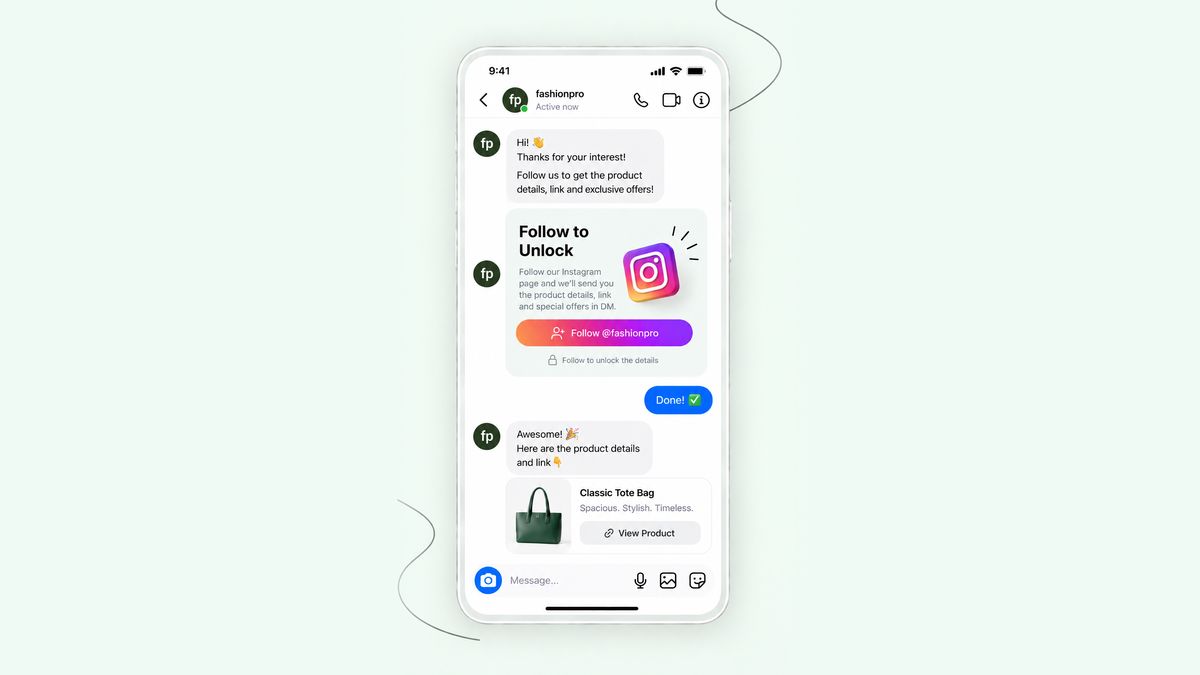
- Ask to Follow (follow to unlock). The first DM asks the person to follow you and shows a button such as "Followed". BlipDM checks; if they follow, the PDF arrives in the same chat. If not, it sends a friendly nudge and they can tap again. See follow to unlock automation.
- Ask for Email & Phone. The DM asks for an email address or phone number, then sends the PDF. Leads are saved to your contacts and counted as "Leads captured" in analytics. See lead capture automation.
Pick one of these at most. A follow and an email before a free checklist feels like a lot to ask.
Step-by-step setup
- Connect Instagram. Sign up for BlipDM and connect your Business or Creator account on Instagram's own login screen.
- Create a new automation. Choose comment to DM, Story reply or DM keyword. You can start from a "get leads" or "share content" template.
- Pick the post or reel, or choose Next Post if you're setting it up before publishing.
- Set the keyword, such as EBOOK, GUIDE or PLAN. Use a word people only type on purpose.
- Write the message. A short line that says what they're getting, up to 400 characters. Add up to three link buttons if you also want "Book a call" or "Shop the course".
- Upload your PDF in the message step.
- Optional on Elite: turn on Ask to Follow or Ask for Email & Phone.
- Add a public reply such as "Sent it to your DMs!" so other people see it works.
- Test from a second account, check the file opens on a phone, then save and activate.
If you've never built an automation, set up your first comment-to-DM automation walks through each screen.
Messages to send with the file
Plain delivery
Here's your free meal plan 📘 Start with page 3 if you only have 5 minutes today.
After an email
Thanks! Your ebook is below. I'll also send next week's recipes to your inbox.
After a follow
Thanks for the follow! Here's the checklist you asked for. Save it so you can find it later.
Tips for a lead-magnet PDF people actually open
File name
The file name shows in the chat bubble. Make it readable and branded: 7-Day-Meal-Plan-by-CoachAsha.pdf, not final_v3_export(2).pdf. People who save it will find it again, and they'll remember who sent it.
File size
Smaller files open faster on mobile data. Meta's documentation for message attachments sets a maximum file size, often quoted as 25 MB for files, but aim for well under 10 MB. Compress images, export at screen resolution rather than print, and remove pages nobody needs.
Cover and first screen
The first page is what people see when the file opens, so make it do the work:
- A clear title and one-line promise: "7 days of 20-minute workouts, no equipment."
- Your name and Instagram handle, so the file still points back to you if it's shared.
- A short note on where to start.
Skip the long introduction. Put the useful part by page two.
Length and next step
A short PDF that someone finishes is worth more than a long one they abandon. Five to fifteen pages is plenty for most lead magnets. End with one clear next step: a booking link, your programme or your shop.
Update without resending
When you update the ebook, replace the file in the automation. People who comment after that get the new version. People who downloaded the old one keep their copy, so put the date on the first page.
Other places to put your PDF
- Link in Bio (Pro and Elite). Your page at link.blipdm.com/yourname has a file download block, so profile visitors can get the PDF too, and an email-collect form block if you want their address. Its analytics show views and block clicks.
- Carousel DMs (Pro and Elite). If you have several free resources, send up to five cards in one message, each with its own button.
For coaches building a funnel around a free plan, Instagram DM automation for coaches shows how the PDF fits with booking calls and email capture.
Frequently asked questions
Can you send a PDF on Instagram DM?
Not from the Instagram phone app, which has no file attachment option in chats. Instagram's Help Centre lists text, photos, videos, posts and profiles as things you can send. Automation tools on Meta's official API, such as BlipDM on Pro and Elite, can send the PDF file itself in the DM.
How do I send a PDF on Instagram from my phone?
Upload the PDF to Google Drive, Dropbox or your website, set it so anyone with the link can view, and paste the link into the chat. For a one or two-page document, you can also send the pages as photos.
Can I send a PDF on Instagram from a computer?
Some people can drag a PDF into a chat on Instagram's desktop or web version, while others find it doesn't work. Test it on your own account first. For sending the same PDF to many people, an automation tool on Meta's API is more reliable.
How do I automatically send a PDF when someone comments on Instagram?
Use a comment-to-DM automation that supports file attachments. In BlipDM, create an automation, pick your post, set a keyword like EBOOK and upload the PDF in the message step. Everyone who comments the keyword gets the file in their DMs within seconds.
Why does my Google Drive link say I need access?
The file's sharing is set to "Restricted". Open the file in Drive, choose Share, and change General access to "Anyone with the link" with the Viewer role. Links you already sent will start working once you change it.
What is the file size limit for a PDF in Instagram DMs?
Meta's attachment documentation sets a maximum size for files sent through its API, commonly quoted as 25 MB. Smaller is better: aim for under 10 MB so the file opens quickly on mobile data.
Can I ask for an email before sending the PDF?
Yes. On BlipDM's Elite plan, turn on Ask for Email & Phone in the automation. The DM asks for the email, saves it to your contacts and then sends the PDF in the same chat.
Sources
- Instagram Help Centre, Types of messages you can send in chats on Instagram (help.instagram.com/379540359381812).
- Meta for Developers, Instagram messaging API and attachment upload documentation (file attachments).
- Google Drive Help, Share files from Google Drive (General access settings).
- BlipDM pricing and feature pages for follow to unlock and lead capture, checked 18 November 2026.