Set up your first comment-to-DM automation
Connect Instagram, pick a post, choose a keyword and write your message. You can be live in a few minutes, on the Free plan.

 Meta Tech Provider
Turn Instagram conversations into sales.
Auto-reply to comments, stories, and DMs instantly. Set up your automation in minutes and turn more conversations into customers.
Get StartedA comment-to-DM automation watches a post for a keyword. When someone comments it, BlipDM sends them a direct message straight away, so the link, price or details reach them without you typing a reply.
This guide builds one from scratch. It works on the Free plan, which includes 500 DMs a month.
What you need
- An Instagram professional account (a business or creator account).
- A post you want people to comment on.
- Something to send: a link, a price list, a discount code or a short message.
Connect your Instagram account
Go to blipdm.com and click Start for free, then sign in with Instagram and allow the permissions BlipDM asks for. When it finishes you land on your dashboard, with your recent posts on the Home page.
Start a new automation
Click New Automation and pick Comment to DM. The builder opens with your options on the left and a phone preview on the right, which updates as you type.
Select your post
Under Select your post, choose one:
- A specific post attaches the automation to one post. Pick it from your recent posts.
- Any post runs the automation on every post you publish.
For a first automation, a specific post keeps things easy to test.
Choose your trigger keyword
Under Choose your trigger keyword, pick A specific keyword and type a short word, such as LINK. BlipDM also suggests common ones like PRICE, SHOP and INFO. Pick Any comment instead if you want to reply to everyone.
Write your message
In DM Message, stay on the Text Message tab and write what you want people to receive. A message can be up to 400 characters, and you can add up to three link buttons underneath it.
Keep it friendly and get to the point. Something like "Thanks for commenting! Here is the link you asked for" with a button to the page works well.
Save and activate
Click Save & Activate. The automation is on from that moment, and your post shows as automated on the Home page.
To check it works, comment your keyword from a different Instagram account. The message should arrive shortly after you comment.
What next
Once the first one works, try a specific keyword on your next post, or swap the text message for an image message. If you are on the Pro or Elite plan, carousel DMs let one comment return several products.
Keep reading
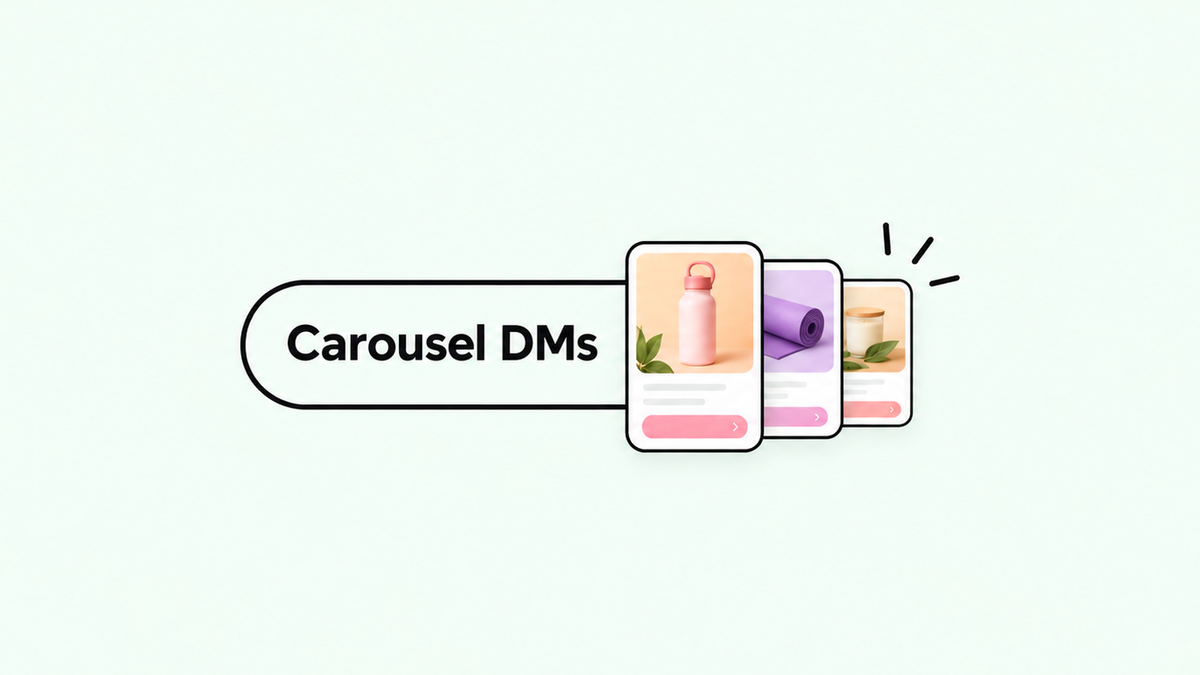
How to send product carousels to Instagram DMs (2026)
Turn one keyword comment into a swipeable carousel of products in your customer's inbox, with an image, caption and button on every card.
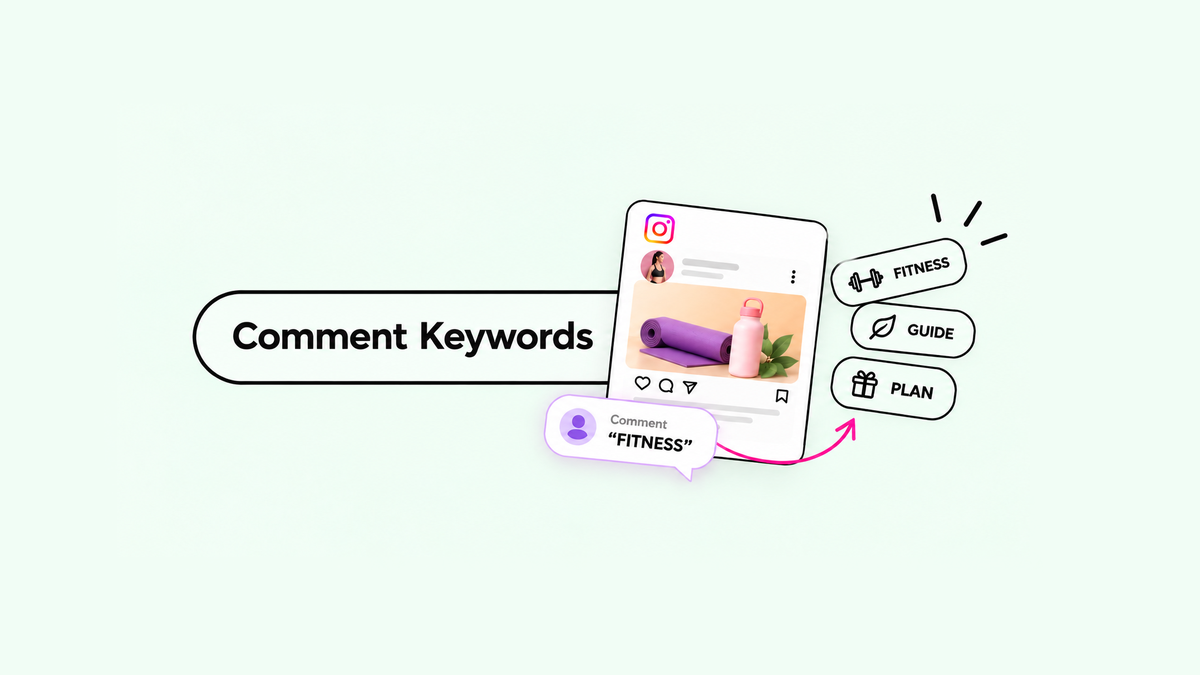
The Secret to Choosing Instagram Comment Keywords
Choose simple, memorable keywords that feel natural to type and trigger the right automation. Learn what makes a keyword work, what to avoid, and how to choose one for your next Instagram post.